AWS vs GCP for hosting WordPress in 2026 explained with clear comparisons, pricing, performance, security, and step-by-step setup—an ultimate beginner-to-pro master guide.
Choosing the right cloud platform can make or break your WordPress website’s performance, security, and long-term costs. In 2026, AWS and Google Cloud Platform (GCP) remain the two most powerful and trusted cloud providers—but for beginners and growing businesses, deciding which is better and cheaper can feel confusing. This guide cuts through the noise with a clear, practical, and beginner-friendly explanation to help you confidently choose the best platform for hosting WordPress, whether you’re launching your first site or scaling to global traffic.
AWS vs GCP for Hosting WordPress (2026): The Ultimate Beginner-to-Pro Master Guide
Which cloud is cheaper? Which is easier? Which scales better?
If you’re planning to host a WordPress website and feel overwhelmed by AWS vs GCP, this globally applicable, beginner-friendly master guide will walk you from zero knowledge → confident decision → step-by-step deployment.
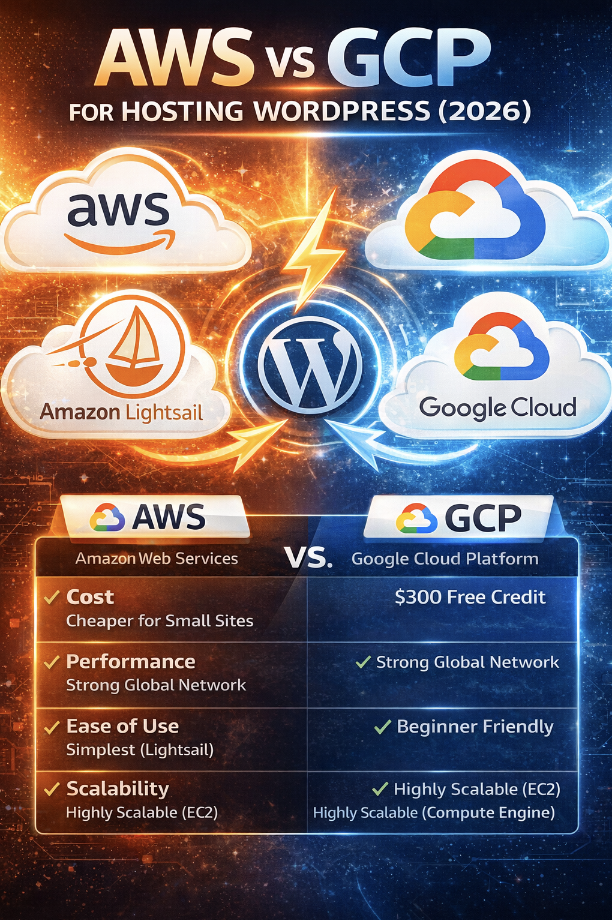
AWS vs GCP for WordPress hosting in 2026: a complete beginner-to-pro guide covering costs, performance, scalability, security, and step-by-step setup on both cloud platforms.
Table of Contents
- Why Cloud Hosting for WordPress?
- Understanding AWS & GCP (Beginner-Friendly)
- Cost Comparison (Real Numbers Explained)
- Performance & Speed
- Ease of Use for Beginners
- Security & Reliability
- Scalability & Growth Planning
- AWS vs GCP: Feature-by-Feature Comparison
- Step-by-Step: Host WordPress on AWS (Beginner)
- Step-by-Step: Host WordPress on GCP (Beginner)
- Cost Optimisation Tips (Both Platforms)
- Which One Should You Choose?
- Common Beginner Mistakes
- FAQs
- Final Verdict
1. Why Cloud Hosting for WordPress?
Traditional shared hosting is cheap—but limited. Cloud hosting gives you:
- Dedicated resources
- Faster load times
- Better security
- Easy scaling
- Global reach
For serious blogs, businesses, startups, and global audiences, cloud hosting is now the standard.
2. Understanding AWS & GCP (In Simple Words)
🌐 (AWS)
- World’s largest cloud provider
- Powers Netflix, Airbnb, Amazon, government & enterprise systems
- Extremely flexible (but can feel complex)
🌐 (GCP)
- Built on Google’s internal infrastructure
- Known for speed, networking, and analytics
- Cleaner interface, generous free credits
Think of it this way:
- AWS = Most powerful toolbox in the world
- GCP = Cleaner, smarter, more beginner-friendly power tools
3. Cost Comparison (Real Beginner Numbers)
💰 Entry-Level Monthly Cost (2026)
| Platform | Starter Option | Approx Cost |
|---|---|---|
| AWS | Lightsail (1GB RAM) | $5–6/month |
| GCP | Compute Engine (e2-micro) | $7–9/month |
| GCP | Free tier (limited) | $0 (with $300 credit) |
🔍 Hidden Cost Reality
- AWS charges separately for bandwidth, storage, snapshots
- GCP auto-applies Sustained Use Discounts
- Beginners often overspend on AWS if not careful
💡 Cost Winner for Beginners:
➡ AWS Lightsail (predictable billing)
4. Performance & Speed (Global Perspective)
AWS Performance
- Excellent uptime (99.99%)
- Global CDN via CloudFront
- Stable under traffic spikes
GCP Performance
- Google’s private global network
- Faster latency in many regions
- Strong SSD performance
Speed Verdict:
⚖️ Tie, with a slight edge to GCP networking
5. Ease of Use (Beginner Experience)
| Factor | AWS | GCP |
|---|---|---|
| Dashboard clarity | Medium | High |
| WordPress setup | Very easy (Lightsail) | Easy (Marketplace) |
| Learning curve | Steeper | Smoother |
| Billing clarity | Confusing | Clear |
Beginner Winner:
🥇 AWS Lightsail (simplest WordPress launch)
6. Security & Reliability
Both platforms offer:
- Firewalls
- DDoS protection
- Data encryption
- Secure login (IAM)
AWS Strength
- Mature security ecosystem
- Used by governments & banks
GCP Strength
- Google-grade security
- Automatic patching options
Security Verdict:
🔐 Tie (both enterprise-grade)
7. Scalability & Growth Planning
AWS Scaling
- Lightsail → EC2 → Load Balancer → RDS
- Best for complex, large-scale growth
GCP Scaling
- Easy vertical scaling
- Automatic discounts
- Strong for analytics-driven growth
Scalability Winner:
🥇 AWS (more flexible long-term)
8. AWS vs GCP – Key Comparison Table
| Feature | AWS | GCP |
|---|---|---|
| Cheapest entry | ✅ | ❌ |
| Free credits | ❌ | ✅ $300 |
| Beginner friendliness | ⭐⭐⭐ | ⭐⭐⭐⭐ |
| Global scalability | ⭐⭐⭐⭐⭐ | ⭐⭐⭐⭐ |
| Analytics & AI | ⭐⭐⭐ | ⭐⭐⭐⭐⭐ |
| Billing simplicity | ⭐⭐ | ⭐⭐⭐⭐ |
9. Step-by-Step: Host WordPress on AWS (Lightsail)
A complete beginner-friendly walkthrough with plain-English explanations
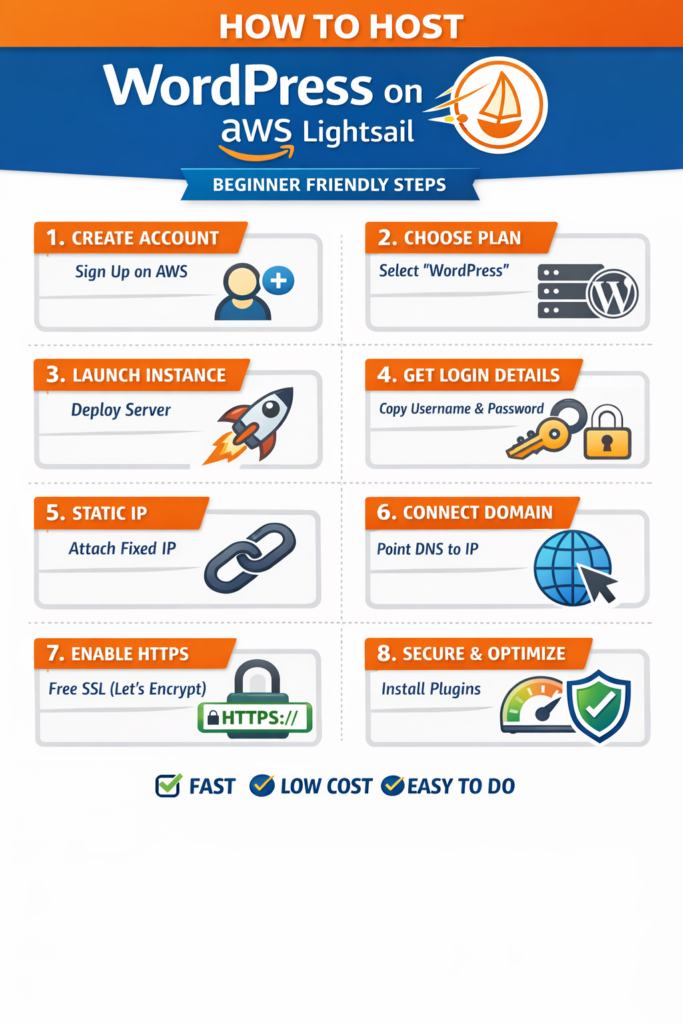
This section is written for absolute beginners. You do not need prior cloud, server, or coding knowledge. Follow each step carefully, and you will have a live WordPress website on AWS Lightsail.
What is AWS Lightsail (in simple words)?
AWS Lightsail is Amazon’s easiest cloud hosting service.
Instead of dealing with complex servers, Lightsail gives you:
- A ready-made WordPress server
- Fixed monthly pricing (no surprise bills)
- Built-in storage, bandwidth, and backups
👉 Think of Lightsail as “cloud hosting made simple”.
What You Need Before Starting
✔ A domain name (optional – you can add later)
✔ A debit/credit card (required by AWS)
✔ 30–40 minutes of time
STEP 1: Create an AWS Account
- Go to the official AWS website
- Click Create an AWS Account
- Enter:
- Email address
- Password
- Account name
- Add billing details (card verification only)
- Complete identity verification (OTP)
✅ Important:
AWS may charge a small temporary verification amount, which is usually reversed.
STEP 2: Open AWS Lightsail
- After login, search for Lightsail in the AWS search bar
- Click Amazon Lightsail
- You’ll see a clean dashboard (much simpler than other AWS services)
👉 This is where your WordPress server will live.
STEP 3: Create a WordPress Instance (Most Important Step)
3.1 Click Create Instance
You’ll now configure your WordPress server.
3.2 Choose Location (Server Region)
- Select the region closest to your audience
- India → Mumbai
- Europe → Frankfurt/London
- USA → Virginia/Oregon
📌 Why this matters:
Closer server = faster website loading.
3.3 Choose Platform
- Select Linux/Unix (default)
- Do NOT change unless you know what you’re doing
3.4 Choose Blueprint (This is Critical)
- Select WordPress
- Choose WordPress (Latest version)
👉 AWS will automatically:
- Install WordPress
- Install PHP & database
- Configure the server
You don’t need to install anything manually.
3.5 Choose Instance Plan (Pricing)
For beginners, choose:
- $5 USD/month plan
- 1 GB RAM
- 1 vCPU
- 40 GB SSD
- 2 TB bandwidth
💡 This plan is perfect for:
- Blogs
- Business websites
- Portfolios
- Up to ~30,000 visits/month
You can upgrade later.
3.6 Name Your Instance
Example:
myadvisers-wordpressblog-servercompany-website
Click Create Instance
⏳ Wait 1–2 minutes.
🎉 Your WordPress server is now live!
STEP 4: Access Your WordPress Website
4.1 Find Your Website IP Address
- Click your instance
- Copy the Public IPv4 address
Paste it into your browser.
👉 You’ll see your WordPress website live (default theme).
STEP 5: Get WordPress Admin Login Details
AWS auto-generates your WordPress admin password.
5.1 Connect to Server (No Coding Needed)
- Inside Lightsail → click Connect using SSH
- A black terminal window opens (don’t panic)
5.2 Run This Command (Copy–Paste)
cat bitnami_application_password
- Press Enter
- Copy the password shown
5.3 Login to WordPress Admin
Go to:
http://YOUR-IP/wp-admin
- Username:
user - Password: (the one you copied)
🎉 You are now inside WordPress Dashboard.
STEP 6: Connect Your Domain Name (Optional but Recommended)
If you already own a domain:
6.1 Create Static IP
- In Lightsail → Networking
- Create Static IP
- Attach it to your instance
📌 This prevents IP changes.
6.2 Update Domain DNS
At your domain registrar:
- Create A record
- Point it to your Lightsail Static IP
⏳ DNS may take up to 24 hours.
STEP 7: Enable HTTPS (SSL Certificate)
Security is mandatory in 2026.
Option A: Lightsail Built-in SSL
- Use Lightsail SSL wizard
- Free Let’s Encrypt certificate
Option B: Plugin Method
- Install Really Simple SSL plugin
- Activate & auto-configure
🔒 Your site will now load with https://
STEP 8: Basic Performance & Security Setup
Install These Plugins:
- Cache plugin (LiteSpeed / WP Rocket)
- Security plugin (Wordfence / iThemes)
- Image optimisation plugin
Enable Backups:
- Lightsail → Snapshots → Enable automatic backups
STEP 9: Understanding Your Monthly Cost
With $5 plan:
- Fixed monthly billing
- No hidden costs if within bandwidth
- Predictable pricing (best for beginners)
💡 Enable Billing Alerts to stay safe.
STEP 10: When to Upgrade Your Server
Upgrade if:
- Site becomes slow
- Traffic crosses ~30k/month
- You add e-commerce or heavy plugins
Lightsail allows 1-click upgrade.
Beginner FAQs (AWS Lightsail WordPress)
Q: Is AWS Lightsail safe for beginners?
Yes. It’s the safest and simplest AWS option.
Q: Can I migrate later to bigger AWS services?
Yes. Lightsail → EC2 migration is supported.
Q: Can I host multiple sites?
Yes, but better to create separate instances.
Q: What if I make a mistake?
You can delete the instance and recreate it anytime.
Beginner Verdict
✔ Cheapest cloud WordPress hosting
✔ No server knowledge required
✔ Easy scaling
✔ Global infrastructure
⭐ AWS Lightsail is the best cloud starting point for WordPress beginners worldwide
10. Step-by-Step: Host WordPress on GCP (Google Cloud Platform)
A complete, beginner-friendly walkthrough with zero prior cloud knowledge required
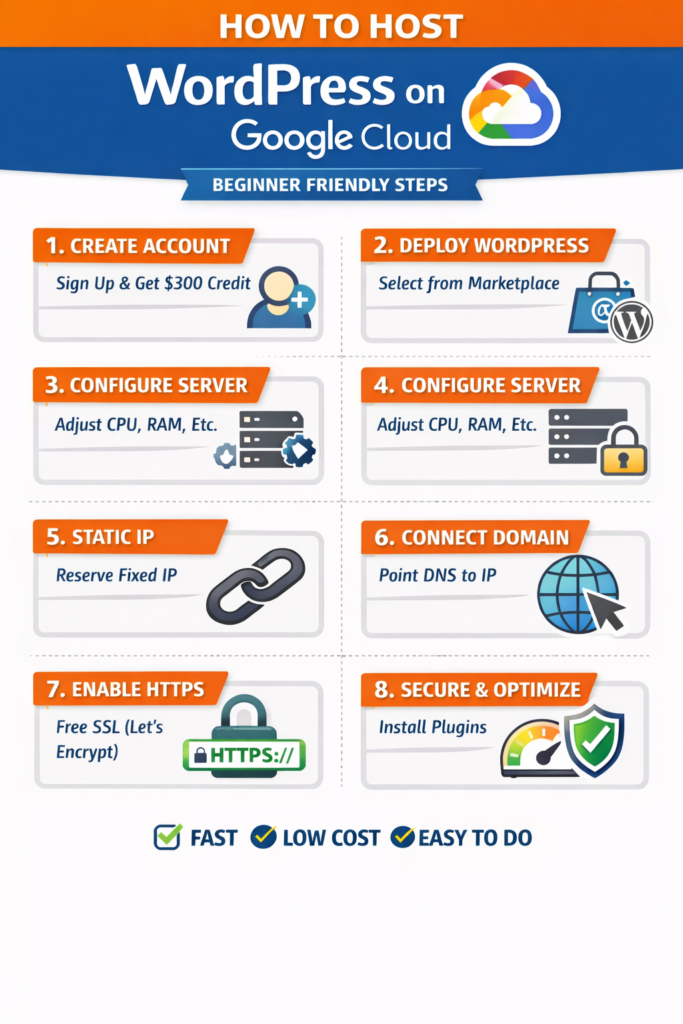
This guide is written for absolute beginners. If you can use email and a web browser, you can host WordPress on GCP by following these steps carefully.
What is GCP? (Easy Explanation)
(GCP) is Google’s cloud infrastructure — the same system that powers Google Search, YouTube, Gmail, and Google Maps.
For WordPress hosting, GCP offers:
- High-speed global network
- SSD-based servers
- Automatic discounts
- $300 free credits for new users
👉 Think of GCP as “Google-powered hosting for serious websites.”
What You Need Before Starting
✔ Google account (Gmail works)
✔ Debit/Credit card (required for verification)
✔ Optional: domain name
⏱ Time required: 30–45 minutes
STEP 1: Create a Google Cloud Account
- Visit the official Google Cloud website
- Click Get Started for Free
- Sign in using your Google account
- Add billing details
🎁 You’ll receive $300 free credits (valid for 90 days)
📌 Important:
You will NOT be charged unless you manually upgrade beyond free credits.
STEP 2: Open Google Cloud Console
After signup:
- You’ll be redirected to Google Cloud Console
- This is your control panel (dashboard)
👉 Everything — servers, billing, WordPress — is managed here.
STEP 3: Deploy WordPress from GCP Marketplace (Easiest Way)
3.1 Open Marketplace
- In the left menu → click Marketplace
- Search for WordPress
- Select WordPress by Bitnami
📌 Bitnami provides a pre-configured, secure WordPress stack.
3.2 Click “Deploy”
You’ll now configure your WordPress server.
STEP 4: Configure Your WordPress Server
4.1 Deployment Name
Example:
myadvisers-wordpressblog-wp-server
This is just an internal name.
4.2 Choose Region & Zone (Very Important)
Choose the region closest to your audience:
- India → Mumbai
- Europe → Frankfurt / London
- USA → Iowa / Virginia
📌 Closer region = faster website speed
4.3 Choose Machine Type (Beginner Recommendation)
For beginners, choose:
- e2-small
- 2 vCPU
- 2 GB RAM
💡 Why not micro?
- WordPress runs better with 2GB RAM
- Prevents slow admin panel & crashes
4.4 Disk Settings
- SSD Disk (default)
- 20–30 GB is enough for most beginners
4.5 Firewall Settings (Must Enable)
✔ Allow HTTP traffic
✔ Allow HTTPS traffic
⚠️ If you skip this, your site will NOT open.
4.6 Click Deploy
⏳ Wait 3–5 minutes.
🎉 Your WordPress server is live on Google Cloud
STEP 5: Access Your WordPress Website
After deployment:
- Click VM Instance
- Copy External IP address
- Paste it into browser
👉 You’ll see your WordPress website live.
STEP 6: Get WordPress Admin Login Details
Inside deployment details:
- Username:
user - Password: auto-generated (copy it)
Login URL:
http://YOUR-IP/wp-admin
🎉 You’re now inside the WordPress dashboard.
STEP 7: Reserve Static IP (Highly Recommended)
By default, GCP IPs can change.
7.1 Reserve Static IP
- Go to VPC Network → IP Addresses
- Reserve Static External IP
- Attach it to your VM
📌 This ensures your domain never breaks.
STEP 8: Connect Your Domain Name
At your domain registrar:
- Create A Record
- Point it to your Static IP
⏳ DNS propagation: up to 24 hours.
STEP 9: Enable HTTPS (SSL Certificate)
Option A: Bitnami HTTPS Tool (Recommended)
- GCP Bitnami includes free Let’s Encrypt SSL
- Run built-in HTTPS configuration tool
- Auto-renews certificates
Option B: WordPress Plugin
- Install Really Simple SSL
- Activate and auto-configure
🔒 HTTPS is mandatory for SEO & security.
STEP 10: Basic Security & Performance Setup
Install Essential Plugins:
- Cache plugin (WP Rocket / W3 Total Cache)
- Security plugin (Wordfence)
- Image optimisation plugin (ShortPixel)
Enable Backups:
- GCP → Snapshots → Schedule automatic backups
STEP 11: Understanding Your GCP Cost
Typical Monthly Cost (2026)
| Item | Approx Cost |
|---|---|
| e2-small VM | $12–15 |
| Disk & IP | $1–2 |
| Total | ~$14–17/month |
💡 Free credits can cover this for months
STEP 12: When to Upgrade on GCP
Upgrade if:
- Admin panel becomes slow
- Traffic grows beyond ~40k/month
- WooCommerce or heavy plugins added
GCP allows live VM resizing.
Beginner FAQs (GCP WordPress)
Q: Is GCP harder than AWS Lightsail?
Slightly, but still beginner-friendly with Marketplace.
Q: Will my site go offline if credits expire?
Yes — add billing method before credits end.
Q: Is GCP faster than AWS?
Often yes due to Google’s private network.
Q: Can I migrate later?
Yes. WordPress is portable.
Beginner Verdict (GCP WordPress Hosting)
✔ $300 free credits
✔ Google-grade speed & reliability
✔ Clean UI
✔ Strong analytics integration
⭐ Best for users who want premium performance and free trial flexibility
AWS vs GCP (Beginner Final Choice)
| Situation | Best Choice |
|---|---|
| Lowest predictable cost | AWS Lightsail |
| Free trial & testing | GCP |
| Absolute beginner | AWS Lightsail |
| Analytics / AI future | GCP |
🔚 Final Expert Tip
If this is your first cloud WordPress site, start with AWS Lightsail.
If you want Google-powered speed + free credits, choose GCP.
11. Cost Optimisation Tips (CRITICAL)
- Use CDN (CloudFront / Cloud CDN)
- Offload media to S3 / Cloud Storage
- Enable caching plugins
- Set budget alerts
- Shut down unused instances
- Avoid over-provisioning RAM
12. Which One Should YOU Choose?
Choose AWS if:
- You want the cheapest predictable cost
- You’re a beginner using Lightsail
- You plan massive scaling later
Choose GCP if:
- You want free credits
- You prefer cleaner UI
- You’ll use analytics, AI, BigQuery
13. Common Beginner Mistakes
❌ Using EC2 instead of Lightsail
❌ Not setting billing alerts
❌ Ignoring backups
❌ No CDN
❌ Overpaying for unused resources
14. Detailed FAQs on AWS and GCP (WordPress Hosting Focus)
General FAQs (AWS & GCP)
1. What is AWS and GCP in simple terms?
- AWS (Amazon Web Services) and GCP (Google Cloud Platform) are cloud computing platforms.
- They let you rent servers, storage, and networking instead of buying physical hardware.
- You only pay for what you use.
Think of them as high-performance global hosting providers, not traditional shared hosting companies.
2. Are AWS and GCP suitable for beginners?
Yes, but with different learning curves:
- AWS Lightsail → Beginner-friendly, simplified interface
- GCP Marketplace (Bitnami WordPress) → Beginner-friendly but slightly more technical
Both are far more powerful than shared hosting once you learn the basics.
3. Is cloud hosting better than shared hosting?
Yes, significantly better.
| Aspect | Shared Hosting | AWS / GCP |
|---|---|---|
| Speed | Limited | High-performance |
| Security | Shared risks | Isolated servers |
| Scalability | Very limited | Instant scaling |
| Stability | Can crash | Enterprise-grade |
Cloud hosting is ideal for serious websites, businesses, and long-term growth.
4. Do AWS or GCP manage WordPress for me?
No (by default).
- You get server infrastructure
- You manage WordPress yourself
However:
- AWS Lightsail & GCP Marketplace automate 80% of the setup
- You don’t need to be a system administrator
AWS-Specific FAQs
5. What is AWS Lightsail and why is it recommended for beginners?
AWS Lightsail is a simplified version of AWS EC2.
It provides:
- Fixed monthly pricing
- One-click WordPress installation
- Built-in networking, storage, and DNS
It removes the complexity of core AWS services.
6. How much does it cost to host WordPress on AWS Lightsail?
Typical monthly costs (2026):
| Plan | Cost | Best For |
|---|---|---|
| $5 | Small blogs | Testing |
| $10 | Business sites | Recommended |
| $20 | High traffic | Scaling |
No hidden fees if bandwidth stays within limits.
7. Is AWS Lightsail really cheaper than GCP?
For predictable workloads, yes.
AWS Lightsail:
- Fixed pricing
- No surprise bills
- Easier budgeting
GCP:
- Usage-based billing
- Can be cheaper or costlier depending on usage
8. Can AWS handle high-traffic WordPress sites?
Yes.
AWS can scale from:
- 1,000 visitors/month
- To millions per day
Lightsail → EC2 → Load Balancers → CDN (CloudFront)
AWS is used by Netflix, Airbnb, Amazon itself.
9. Is AWS secure for financial or business websites?
Extremely secure.
AWS provides:
- Isolated servers
- Firewalls (Security Groups)
- DDoS protection
- Compliance certifications (ISO, SOC, PCI)
Security depends largely on your configuration, not AWS itself.
10. What happens if I forget to pay AWS bills?
- Lightsail instances may be suspended
- Data usually remains intact for a short grace period
- Always enable billing alerts
GCP-Specific FAQs
11. What is GCP best known for in hosting?
GCP is best known for:
- Fast global network
- Low latency
- SSD-only infrastructure
- Integration with analytics, AI, and data tools
Google Search & YouTube run on GCP.
12. Is GCP really free for beginners?
Yes, partially.
- $300 free credits
- Valid for 90 days
- Covers WordPress hosting easily
After credits expire, billing starts only if you continue services.
13. Is GCP more complex than AWS?
Slightly.
- UI is clean but technical
- More options = more control
- Marketplace simplifies WordPress setup
Still manageable for beginners following a guide.
14. How much does WordPress hosting cost on GCP?
Average monthly cost:
| Component | Approx Cost |
|---|---|
| VM (e2-small) | $12–15 |
| Disk + IP | $1–2 |
| Total | ~$14–17 |
Costs may reduce with sustained-use discounts.
15. Is GCP faster than AWS?
In many regions, yes.
Reasons:
- Google’s private fiber network
- Low latency routing
- Strong global CDN
However, performance also depends on:
- Server configuration
- Caching
- Plugins
- Theme quality
16. Can I host multiple WordPress sites on GCP?
Yes.
Options:
- Multiple sites on one VM (advanced)
- Separate VM per site (recommended)
Each VM has its own IP, cost, and resources.
AWS vs GCP – Comparison FAQs
17. Which is better for WordPress: AWS or GCP?
There is no single “best”.
| Requirement | Better Choice |
|---|---|
| Beginner-friendly | AWS Lightsail |
| Free trial | GCP |
| Predictable pricing | AWS |
| Google ecosystem | GCP |
| Long-term enterprise | Both |
18. Which is cheaper for a small WordPress site?
- AWS Lightsail → cheaper & predictable
- GCP → cheaper initially (free credits), variable later
19. Which platform is safer for beginners?
AWS Lightsail.
Reason:
- Fewer configuration mistakes
- Less risk of accidental high billing
- Simpler networking
20. Can I migrate WordPress between AWS and GCP?
Yes.
WordPress is platform-independent. Migration tools:
- All-in-One WP Migration
- UpdraftPlus
- Manual database + files
Security & Compliance FAQs
21. Are AWS and GCP compliant with global standards?
Yes.
Both comply with:
- ISO 27001
- SOC 1, 2, 3
- PCI DSS
- GDPR-ready infrastructure
Compliance of your website content is your responsibility.
22. Do AWS and GCP provide backups automatically?
Not by default.
You must:
- Enable snapshots
- Schedule backups manually
- Or use WordPress backup plugins
23. Can my site be hacked on AWS or GCP?
Yes, if WordPress is misconfigured.
Cloud providers secure infrastructure, not your WordPress site.
You must:
- Update plugins/themes
- Use strong passwords
- Install security plugins
Beginner Decision FAQs
24. Which should I choose if I’m launching my first blog?
👉 AWS Lightsail
It’s:
- Easier
- Cheaper
- Less confusing
25. Which should I choose for long-term business growth?
👉 GCP or AWS EC2
Choose based on:
- Tech skills
- Expected traffic
- Budget predictability
26. Do I need a developer to manage AWS or GCP?
No for small sites.
Yes for:
- Complex scaling
- Load balancing
- Custom server tuning
27. Can I later move to managed WordPress hosting?
Yes.
You can migrate to:
- Cloudways
- Kinsta
- WP Engine
Cloud hosting gives you maximum flexibility.
Summary on Frequently Asked Questions
- AWS Lightsail → Best for beginners, budget-focused users
- GCP → Best for performance testing, analytics-driven sites
- Both are world-class platforms trusted globally
- Choice depends on simplicity vs flexibility
15. Final Verdict (2026)
🏆 Best Overall for Beginners: AWS Lightsail
💸 Best Free Trial & Clean UI: Google Cloud
🚀 Best Long-Term Scalability: AWS
📊 Best Analytics & AI Integration: GCP
Expert Recommendation
If this is your first WordPress cloud site → AWS Lightsail
If you want to experiment risk-free → GCP free credits
Follow Us on Social Media